














































How to set up a proxy in Google Chrome?

In recent years, the issue of blocking Internet resources in RuNet has become increasingly relevant.
Every day the number of blocked sites, social networks and forums increases.
In addition, if when a forum or portal is blocked, so-called «mirrors» appear.
In the case of blocking social networks, users have to resort to more sophisticated ways to bypass restrictions.











We send accounts in just 5 seconds to your e-mail address!

Accounts can be downloaded in your personal account, by mail without registration or immediately after payment!

We automatically create a personal account with the history of all your orders

A long time to check the goods up to 1-24 hours ( Note for tabs )

We can find accounts of any social network and postal service, service, forum

Our accounts work steadily on most types of proxy
How to set up a proxy in Google Chrome: a simple guide
Until recently, the term «proxy server» was known only to IT professionals.
Now almost every modern Internet user is familiar with programs and utilities of this type.
That is, by using a proxy server of another country or region, you automatically hide your location from your provider.
Thus, giving oneself access to government-blocked portals and Internet resources.
In the case of social networks, such servers do not always help.
Therefore, users have to install additional utilities to bypass the blocking.
Note that in addition to stand-alone utilities and programs, there are full-fledged browsers with a built-in «anonymizer».
For example, the well-known browser «Tor» uses the so-called when working on the network.«bulbous» routing.
Using such a system, you get access to most resources that are not available in regular versions of most well-known browsers.
Along with a large number of advantages «Tor», one cannot fail to note the disadvantages of this software.
Let's look at the main disadvantages that a user of «Tor» may encounter:
- To start working in this browser, you need to download additional utilities and programs
- Before you start «internet surfing» through the browser in question, you need to make detailed network and proxy settings
- Software «Tor» It is distributed free of charge, but to obtain the full functionality of the browser, you must purchase a license.
It is logical that users of «Runet» do not want to purchase the full version of the utility to visit blocked sites.
Often a user needs to visit only 2-3 blocked resources.
Therefore, it is not advisable to buy a full version to bypass the limitation.
It is noteworthy thatsetting up a google chrome proxyis provided by the developers, which allows users to configure it manually without any problems.
Despite all the «openness» settings system of this browser, even experienced PC users cannot figure out how to change the proxy on their own.
Therefore, consider the question «how to set up a proxy in google chrome?» in more detail.
Most modern browsers have their own add-on store (extensions), which contains utilities for changing proxies.
Despite all the convenience of such extensions, they are not very popular for the following reasons:
- Short duration of «life» utilitiesAs in the case of portal mirrors, proxy utilities are often blocked after two or three days from the moment they appear in browser stores
- High subscription cost. Most of the utilities presented in the store are distributed in demo mode, so to gain access to all functionality you have to purchase a full subscription
- Connection instability. Since the developers of most applications (including proxy utilities) in browser stores are foreign companies, often such programs do not work in the «ru-region».
If you change the proxy yourself through the Google Chrome browser settings, users do not need to install third-party utilities.
Before considering the instructions for setting up a proxy in Chrome yourself, we recommend that you familiarize yourself with the advantages of such addresses:
- Protect personal PC data and block third-party network attacks
- Access to most Internet resources, access to which is limited by providers
- Maintaining anonymous status when surfing on blocked sites.
In general, self-configuringproxy for the google chrome browserlooks like this:
- open chrome; go to the settings section,
- located in the upper right corner of the window;
- open the subsection «system settings»;
- open the proxy settings window and enter new network data in the appropriate windows.
For experienced Internet users, searching for network settings will not take much time, but for inexperienced users this task may be difficult.
Let's look at the basic steps for changing the proxy server in Google Chrome:
- Launch the browser
- Open settings
- In section «system settings» select «proxy server settings»
- In the window that opens, select the «connections» tab. and check the box to activate the proxy change window
- Change the data and save the changes.
After restarting the browsersetting up a proxy server in google chromecan be considered completed, so you can visit blocked resources.
Instructions for setting up a proxy in Google Chrome
The instructions in the previous section are only suitable for experienced users.
Therefore, it is worth considering the step-by-step process of changing a proxy in Google Chrome for ordinary users.
To learn in detail about the process of changing a proxy in your browser, we recommend that you read the following instructions:
- Open Google Chrome and go to the browser settings section
- In the window that opens, select the section containing the main settings, at the bottom of which open the subsection «System»
- Follow the link «Setting up a proxy server»
- In the window that appears, select the tab «Connections»
- In the subsection «configuring local network parameters» open the tab «Network settings»
- In the additional settings window opposite the inscription «use for local connections» check the box and enter new network data
- Reload the browser or home page.
If you are unable to change the network settings in your browser yourself, check out the training videos from bloggers on this topic.
Since recently the number of blocked Internet portals has increased sharply.
On YouTube video hosting you can find detailed video instructions on how to change proxies.
Our recommendations for work
When working under a changed proxy address, you should rely on the following recommendations:
- If you use «random» proxy for google chrome, be sure to read the reviews for this address. Often such servers are used by scammers, so you should choose a proxy only on trusted resources, where its status is monitored in real time.When using unverified addresses, you risk losing your personal data
- While visiting blocked Internet resources, you may notice that you are denied access to other pages of websites and social networks. Using a proxy to bypass one block, you may lose access to other resources. It is also not recommended to use a proxy on an ongoing basis
- If you are not an experienced user, when setting up a network yourself, we recommend relying on the instructions. If you enter network data incorrectly, you risk losing access to the Internet
Revert to default network settings
As already noted, users experience problems while working under the new proxy.
In addition to the fact that connection speed decreases when opening pages, users are faced with more serious problems.
If changing the settings does not help, it is recommended to «roll back» network parameters to standard data.
In addition to restoring default settings via Chrome, you can use the Control Panel settings.
Let's look at the process of returning settings in more detail:

In section «Network and Internet» select the browser properties tab
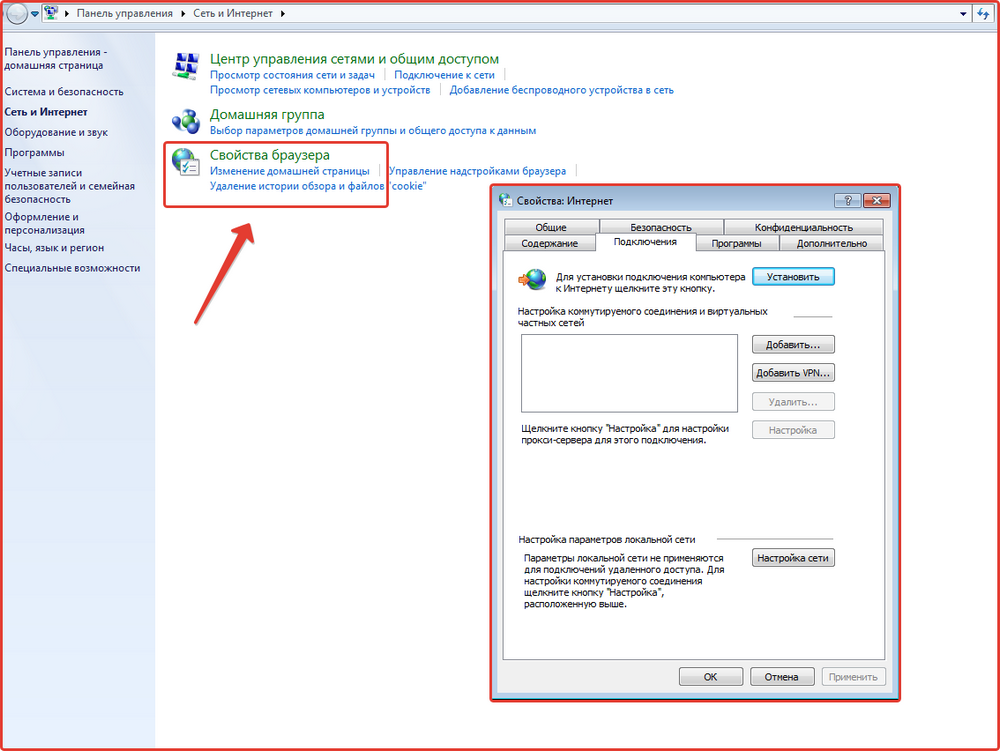
Here we select the tab «connections» and open «network settings»
Opposite the inscription «use a proxy server for local connections» uncheck

Common problems when setting up a proxy yourself:
- Outdated browser version.The instructions presented in this article are relevant for the new version of Google Chrome, so before you configure the settings yourself, we recommend updating your browser
- Incorrect filling of parameters and inactivity of the registered proxy server
- Windows Firewall settings.
In general, the process of independently setting up and changing a proxy server in Google Chrome is quite simple. To avoid network problems, we recommend using the instructions from this article.
In our service you canbuy accountswith anonymous proxies, suitable for any task.
Service presentation - how to place an order!
Similar materials on this topic
Buy mobile proxiesis becoming an increasingly popular solution among users seeking maximum security and efficiency on the network. These special proxy servers operate through mobile network IP addresses (3G/4G/5G), making them virtually indistinguishable from regular smartphone users. Pr...
more details ⟶Proxy server— this is an intermediate link between your device and the Internet. When you use a proxy, your requests are first sent to this server, and then it contacts the desired web resource on your behalf. Simply put, a proxy acts as an intermediary that transfers data between you...
more details ⟶Hello dear users of our service. If you have alreadypurchasedaccounts or are just going to, then we have a small instruction or even a recommendation for working with them. First, before using accounts, you must understand that any social network or even email service does not like spam, ...
more details ⟶On our website you can buy reliable and provenmobile proxiesthat are valued by their trust! Private mobile proxies – This is a proxy with completely unlimited traffic, without loss of speed. The channel works without connection restrictions, and becomes completely yours (p...
more details ⟶Nowadays there are a lot of functional browsers to use all the capabilities of the Internet, but only a few of them are the most popular. Google Chrome can definitely be considered one of the most «advanced» in terms of browser functionality. However, there are also a lot...
more details ⟶The number of blocked Internet resources is only increasing every day, so many users are trying to find effective ways to bypass various kinds of restrictions. Changing proxies, using «mirrors», installing browsers with onion routing schemes – all of this is cons...
more details ⟶